
What this integration does
- Imports your open Ashby roles into Standout automatically.
- Pushes AI-matched candidates from Standout into the right Ashby pipeline stage, with notes and source attribution.
- Keeps candidate progress in sync — when you advance or reject someone in Ashby, Standout reflects it within seconds.
Step 1 — Generate an Ashby API key from the Standout tile
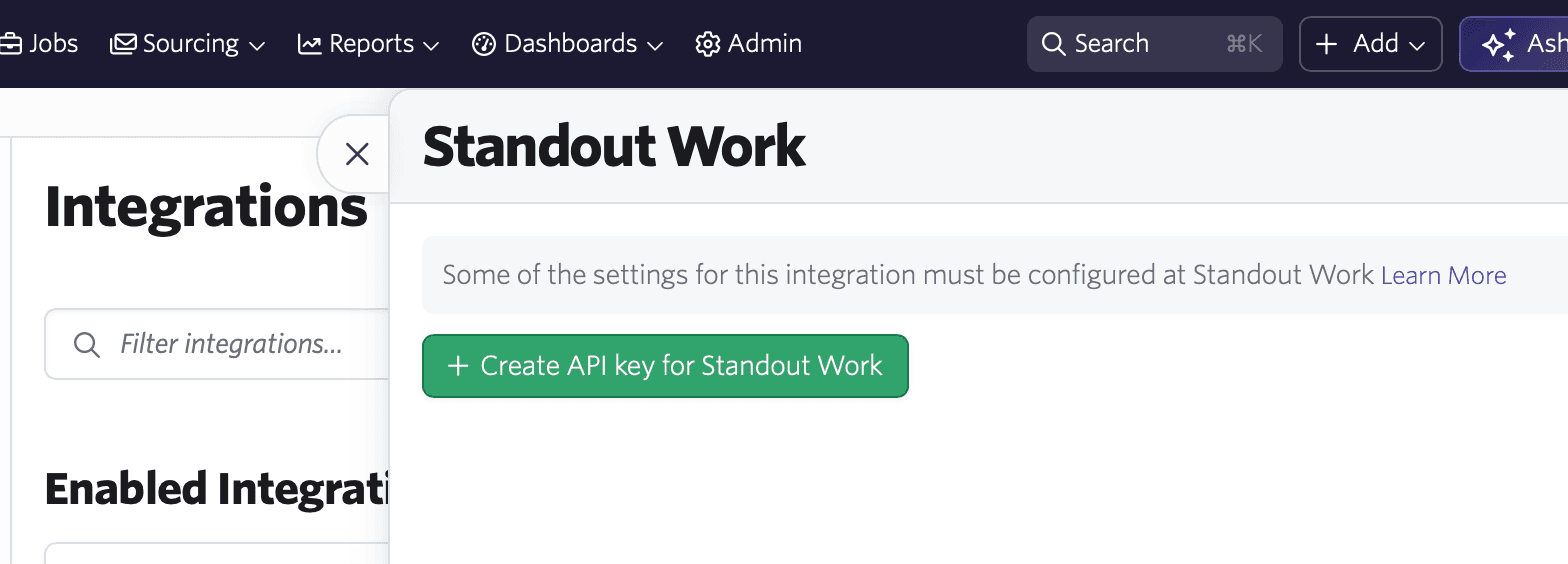
- Open Ashby Admin → Integrations and find the Standout tile.
- Click + Create API key for Standout.
- Ashby will display the new API key — click Copy and keep it on your clipboard for the next step. (You won't be able to see it again after closing.)
Step 2 — Paste the key into Standout
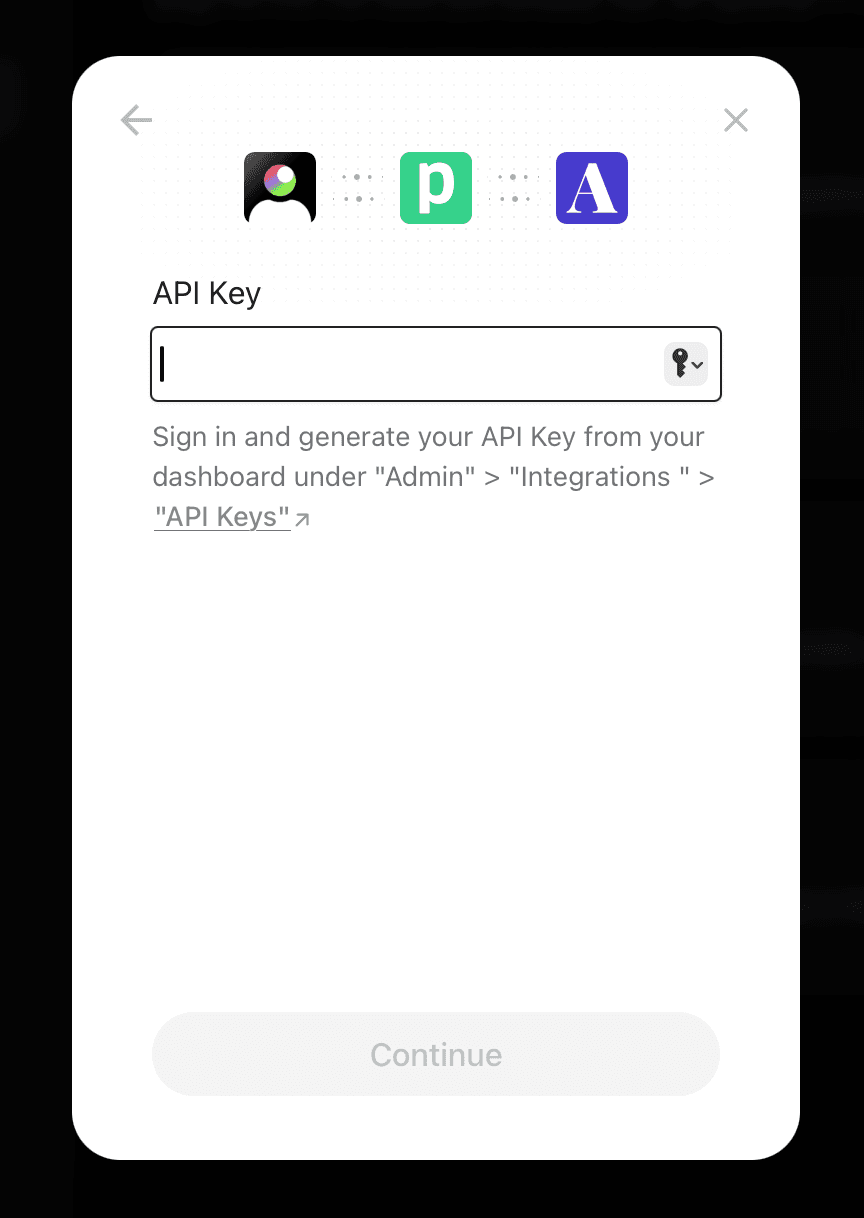
- Open Standout → Settings → Integrations.
- Click Connect on the Ashby card.
- A popup will open. Paste your Ashby API key and click Continue.
- The popup closes and Standout starts syncing. Your open roles will appear in the dashboard within a few seconds.
What gets synced
- Jobs. All open roles are imported on connect and kept fresh. New roles you publish in Ashby show up in Standout within a few minutes.
- Candidate pushes. When you ask Standout to push a candidate to a role, we create the candidate and application in Ashby and place them at the right stage of your hiring plan.
- Stage changes. Moving a candidate forward, backward, or to Archived in Ashby flows back to Standout automatically.
- Archive reasons. When you reject in Ashby with a reason, Standout captures it as feedback on the match.
Disconnecting
You can disconnect either side at any time:
- From Ashby: revoke or delete the Standout API key in Admin → Integrations → API Keys.
- From Standout: Settings → Integrations → click Disconnect on the Ashby card.
Troubleshooting
I clicked Connect and nothing happened
Check that pop-ups aren't blocked in your browser — the connect flow opens in a new window. If that's not it, try an incognito window or a different browser. Still stuck? Email support and we'll dig in.
Roles aren't appearing in Standout after connect
Make sure the role is set to status Open in Ashby (Draft and Closed roles aren't synced). If it's open and still missing after a few minutes, check that the API key has Jobs: Read permission.
A push to Ashby failed
Most common cause: the API key is missing a permission. You can edit permissions on an existing key — open Ashby Admin → Integrations → API Keys → click the Standout key → adjust the checkboxes → Save. No need to regenerate.
I rotated the API key in Ashby
After rotating, return to Standout → Settings → Integrations and reconnect with the new key. The old one will keep failing until you do.
Support
Hit a snag we haven't covered? Email [email protected] and we'll get you sorted.